
3-Number Challenge Matching
Prevents accidental “approve fatigue” by requiring the user on the trusted device to tap the exact 2-digit number shown on the new screen.

Protect admin, cashier, teacher, and parent accounts so unrecognized phones or PCs cannot log in without live approval from a registered Trusted Device.
Even if a password is leaked, an unrecognized browser or phone is halted at login and must pass a 2-digit number-match challenge approved from the user’s existing Trusted Device—displaying real hardware names like Moto, Samsung, iPhone, or Linux Desktop.
Keep school records safe by approving new computer logins with a quick 2-digit number match on the principal’s phone.
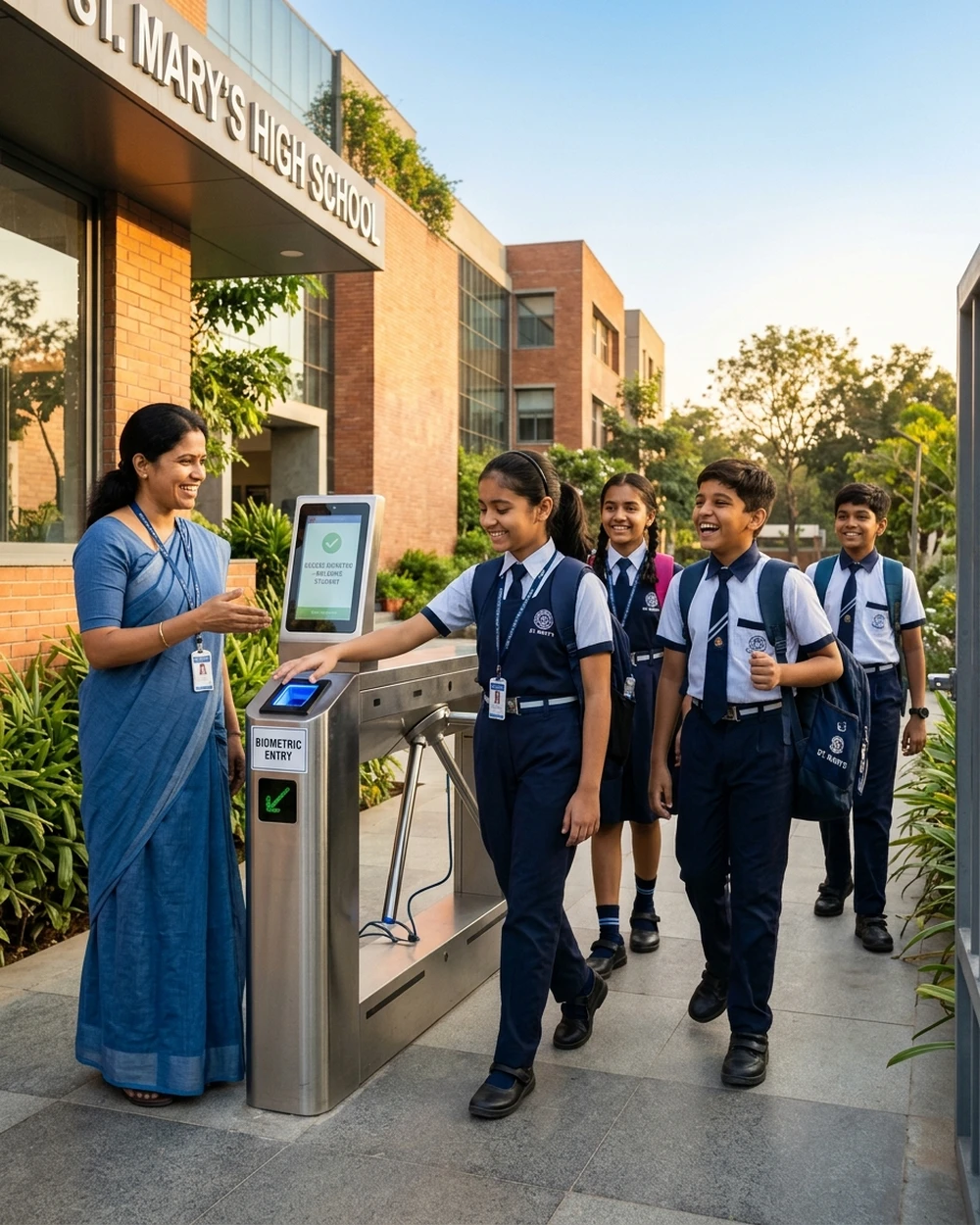
Even if a password is guessed, nobody can sign in without tapping the matching number on your phone
Designed for speed and clarity so staff, students and parents need no technical training.
Register official office laptops and principal smartphones in one click.
In Profile → Security & Trusted Devices, users see their enrolled hardware with human-readable OEM model names, OS, IP, and active session status.

Any new sign-in shows a matching number you confirm on your phone.
When someone signs in from a new phone or laptop, login pauses and displays a 2-digit verification number while alerting all Trusted Devices in real time.
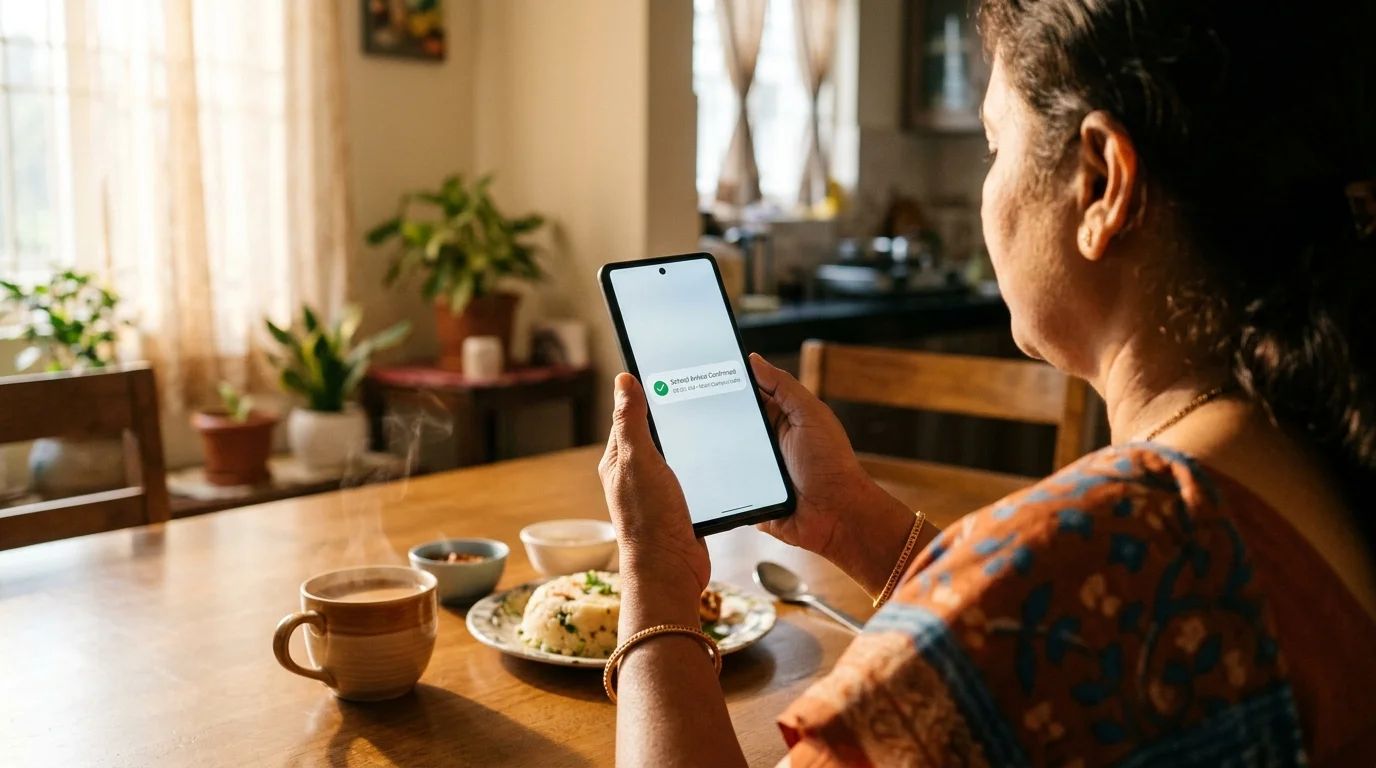
End any session instantly from your phone with a complete safety log.
On the Trusted Device, the user sees the requesting device model (e.g., Motorola Moto G84 · Android 14), taps the matching number to allow access, or taps Deny to block.
Every capability ships with tenant-isolated security, audit trails and real-time notifications.
Prevents accidental “approve fatigue” by requiring the user on the trusted device to tap the exact 2-digit number shown on the new screen.
Identifies Motorola (Moto), Xiaomi/Redmi/POCO, Samsung Galaxy, OnePlus, Vivo, Oppo, Realme, Pixel, iPhone, macOS, Windows, and Linux devices clearly.
As soon as the trusted device approves the challenge, the waiting browser or mobile app transitions straight into the workspace without re-typing credentials.
Users can label devices (“Office Desktop”, “Personal Moto Phone”) and revoke lost or retired hardware in one click.
Ensures financial ledgers and student records can only be opened from authorized campus workstations or management phones.
If a teacher or parent loses their only phone, campus admins can verify identity and reset device trust cleanly.
Every update flows instantly across web dashboards, classroom tablets, and parent mobile apps — with zero manual re-entry.

Guarantees nobody can access sensitive institutional data from an unauthorized home PC.
Protects receipt books and bank account configurations with hardware-bound login security.
Clear visibility into every phone or browser signed into your account, with instant deny.
Enterprise Google/Microsoft-grade sign-in protection built natively into GotIt.
Yes. You can approve a new web browser login from your trusted phone, or approve a new phone from your trusted desktop session.
The prompt shows the detected brand/model (such as Motorola Moto, Samsung, iPhone, or Chrome on Windows), OS platform, and IP address.
When an uncle, grandparent, or family friend comes to pick up a student early or after school, GotIt enforces a cryptographic OTP + receiver identity log before campus staff release the child.
Instead of one bloated ERP menu, GotIt delivers seven distinct, symmetrically engineered portals across Web and Mobile—eliminating training friction for teachers, drivers, cashiers, and parents.
Every record in GotIt is keyed by `institution_id` and organized along materialized hierarchical scopes—letting you filter students, assign HODs, target broadcasts, and consolidate trust reports with zero cross-tenant leakage.